How to use Claude as your social media manager
Claude can write your posts. With Postmaxx connected, Claude Code can also save them as drafts, schedule them and tell you whether each account posted. Here’s the setup and what to ask.

Set it up
- Start the 7-day free trial and connect your accounts in Postmaxx.
- Create an API key under Integrations › Your agent.
- Add Postmaxx to Claude Code with the command below, your key in place of pmx_….
Terminal
claude mcp add --transport http postmaxx https://postmaxx.io/mcp --header "Authorization: Bearer pmx_…"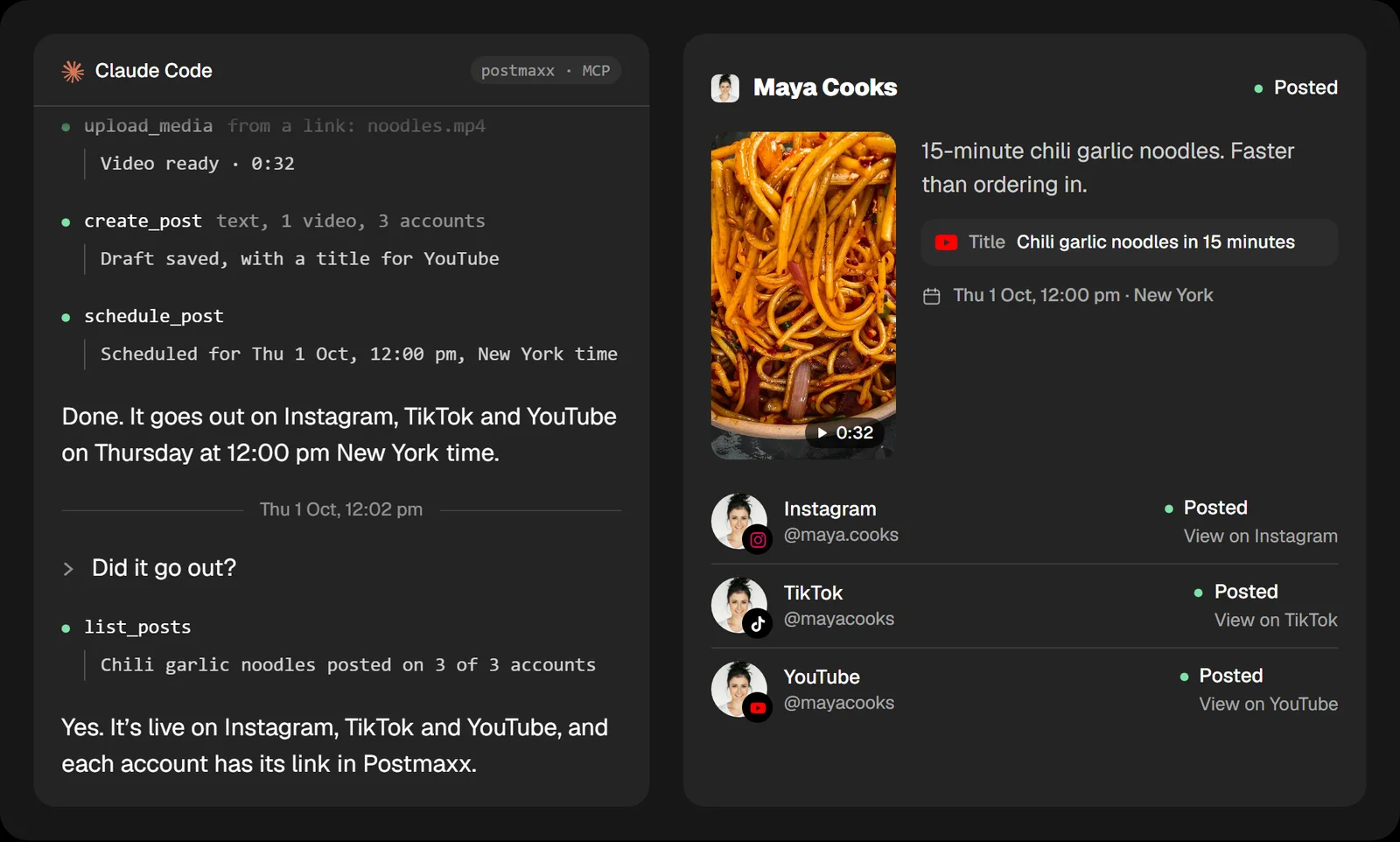
What to ask
- “Draft a post about our new menu for all my accounts and show me before you schedule it.”
- “Add this picture and schedule the post for Thursday at noon.”
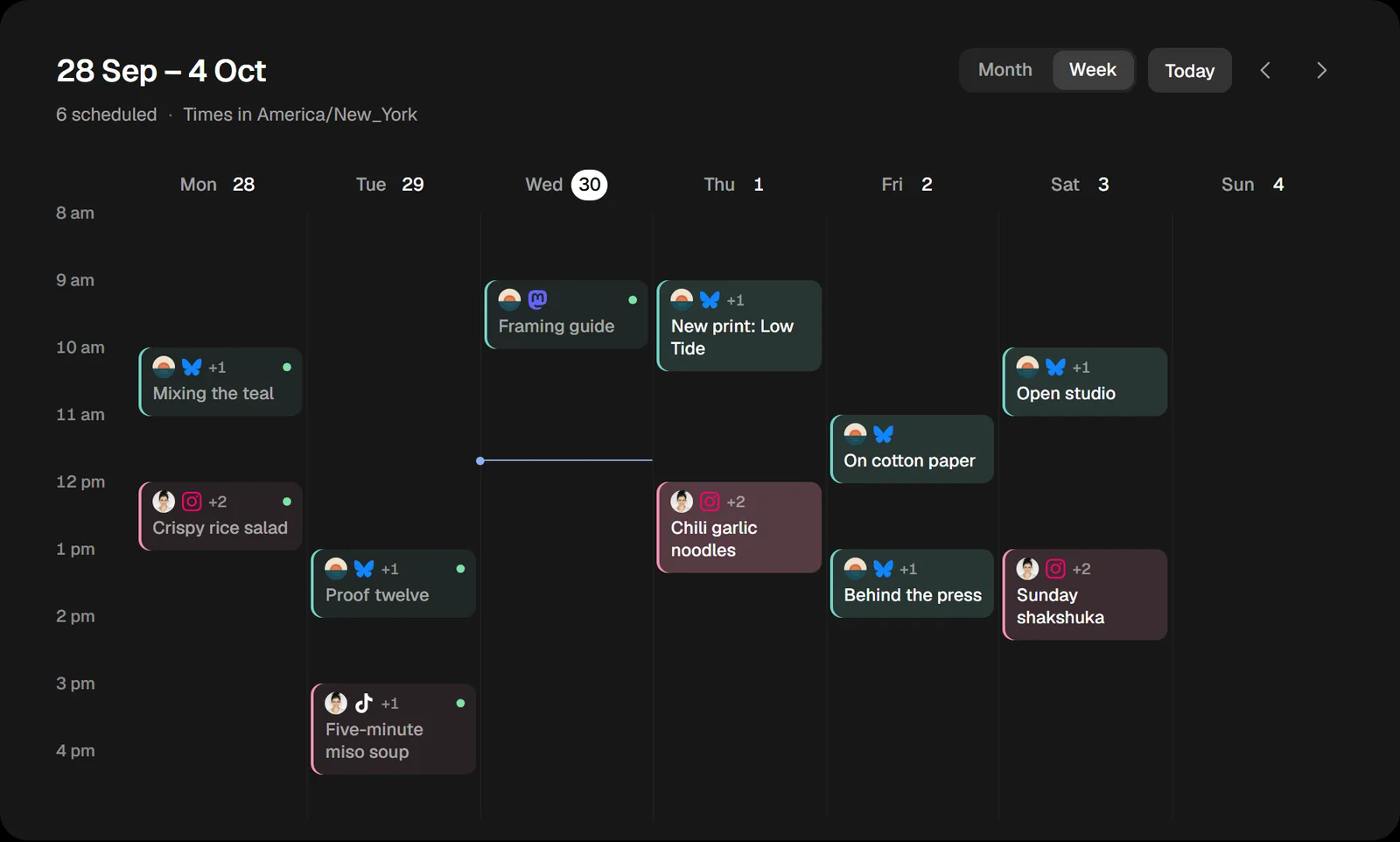
- “What’s scheduled for next week?”
- “Did yesterday’s posts go out? Show me any that failed and why.”
What Claude can do
It sees your accounts, saves drafts, changes and deletes posts that haven’t gone out, adds pictures and videos, schedules posts for a time or your queue’s next free one, lists results and reads your analytics. Nothing goes out until you or Claude schedules it, and every post shows in your calendar.
What stays with you
- Connecting accounts. The owner or an admin does it in Postmaxx; Claude sees a new account as soon as it’s connected.
- Your passwords. Claude only has a Postmaxx key, and you can revoke it at any time.
What doesn’t work yet
The Claude app and claude.ai connect to tools with a sign-in, which Postmaxx doesn’t offer yet. Use Claude Code, or any MCP client that can send an API key. Setup for Claude Code.